Build your own application form
Shipped in v4.1.0Every listing on Kera used to get the same rental application. It covered the basics, but it couldn't ask about pets, parking or a guarantor, or take a pay stub. So you asked those things by email and kept the answers somewhere else.
Now you can build your own application form, choose which listings use it, and run the whole application from Kera: send it to the people you've met, enter one yourself, let roommates apply together, collect their documents and decide unit by unit.
Build the form you need
Open Settings, then Application forms, and click New form. Start from the Kera standard application or start blank. Add sections, and in each one add questions: short answers, paragraphs, money, dates, yes or no, single choice, dropdowns, checkboxes and file uploads. Each section is one step for applicants.
A section can let applicants add more, for references, vehicles or pets, up to 10 entries. A question or a whole section can show only after a certain answer, like a pets question that opens only after Yes. Kera keeps the name, email and phone on every form, and the details screening needs while screening questions are on.
When you publish, Kera checks the questions you wrote against the human rights rules for rental housing across Canada and flags any you may not be allowed to ask, with a short reason. It's a guide, not legal advice, and what your form asks is up to you. Set a default form, or choose a form on any property or unit. Applications already started or sent keep the questions they were asked.
Send it, or enter it yourself
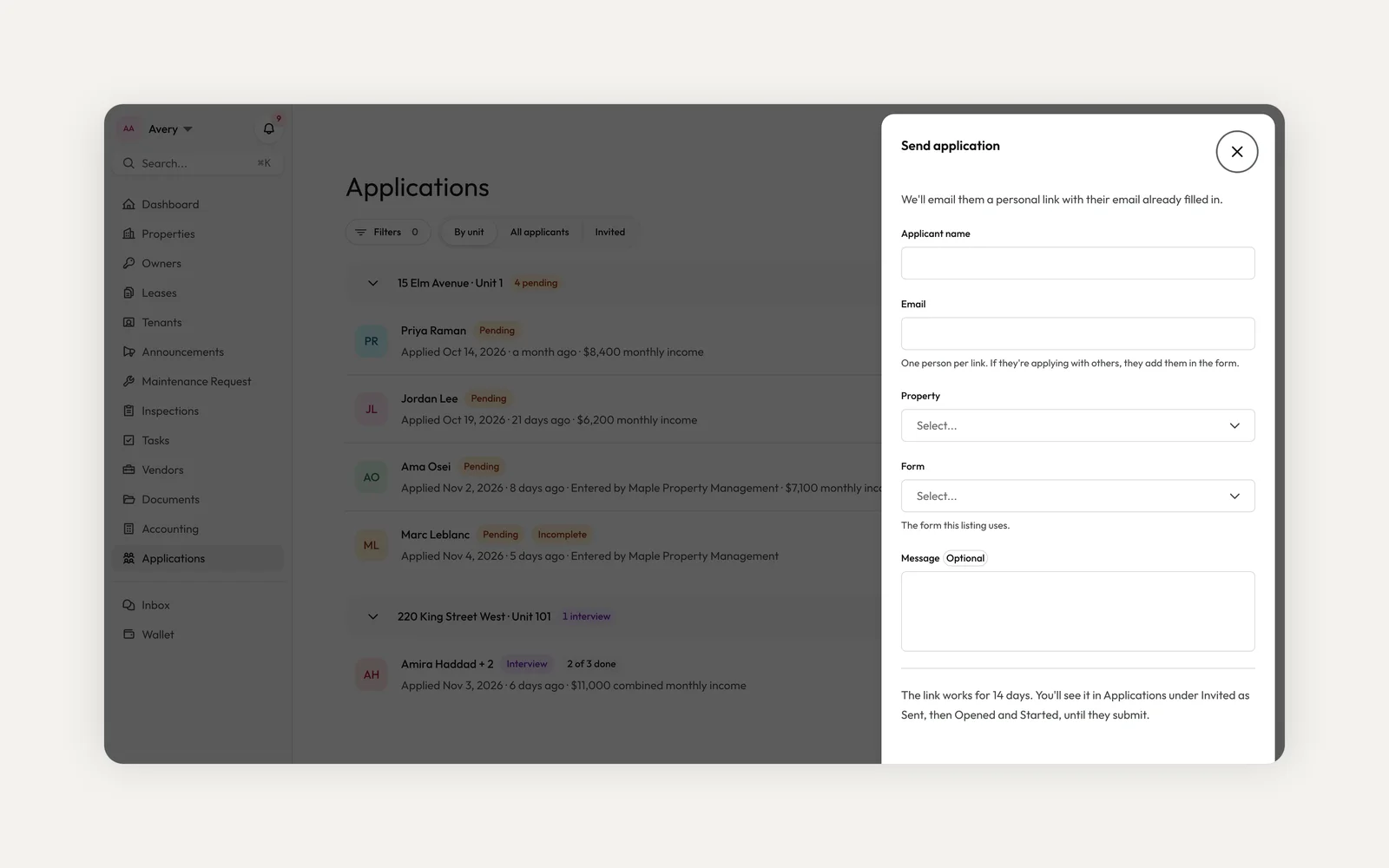
Met someone at a showing? Choose Send application, enter their name and email, and Kera emails them a personal link that works for 14 days, even if the listing isn't open to the public. The Invited tab shows each link as Sent, Opened or Started, and you can resend or cancel it. Kera sends one reminder if they haven't applied after 3 days.
Took an application by phone or on paper? Choose Add application and fill it in step by step. Blanks are fine: it's saved as Incomplete. Only the applicant can consent to screening, so Kera can email them a review link to check your answers, fill the gaps and give consent.
Let people apply together
Roommates and couples can send one application. The first applicant adds everyone who'll be on the lease, up to the number your form allows (four on Kera's standard form, up to six on yours). They can fill in someone's part for them or have Kera email that person a link, and everyone gives their own screening consent.
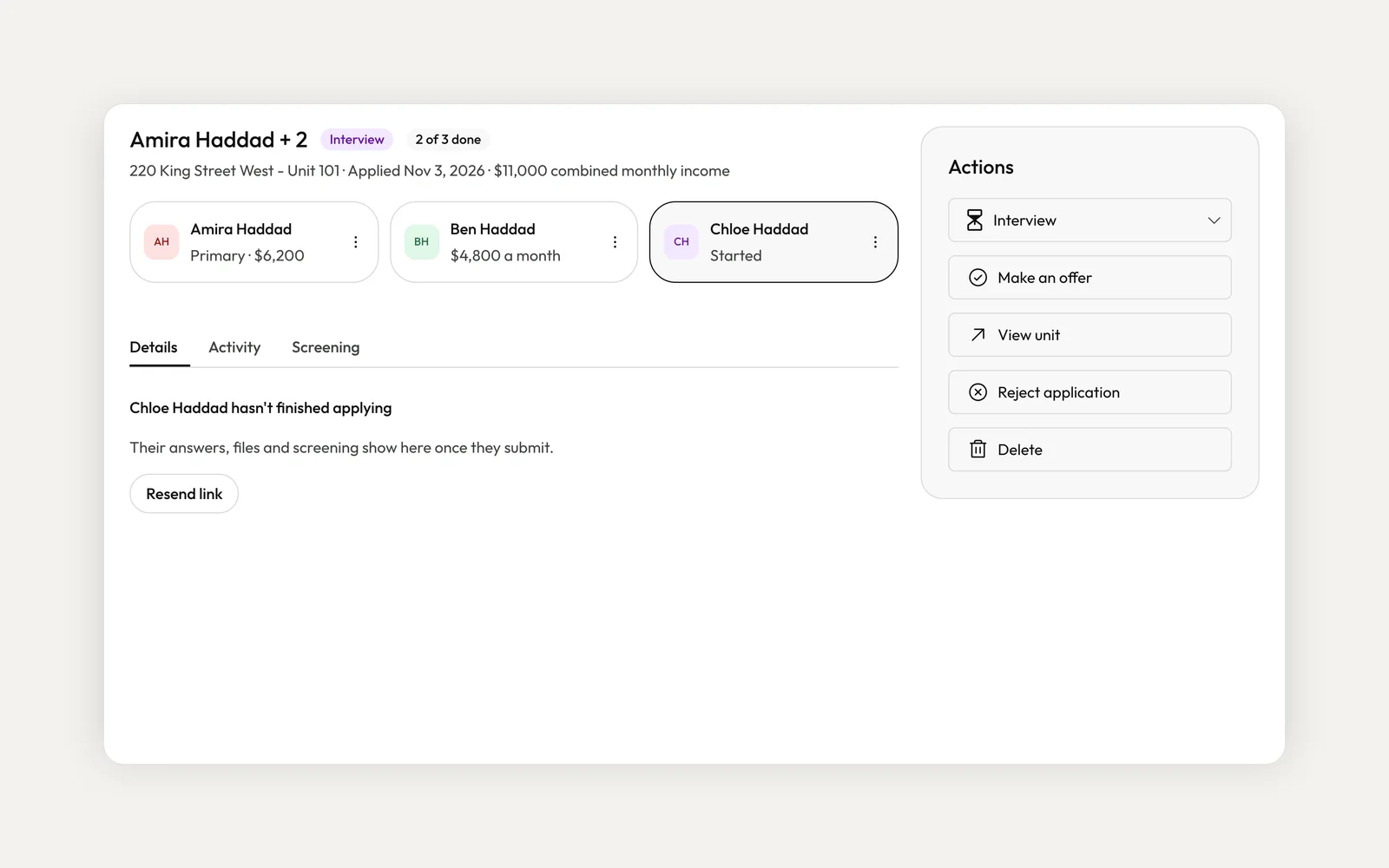
You see the group as one application with combined income and a card for each person. Click a card to see that person's answers, files and screening, or resend the link to someone who hasn't finished. Screening is ordered and charged per person, and you accept the group onto one lease once everyone has applied.Note 1
Collect documents with the application
Add a file upload question to ask for pay stubs, ID or a reference letter. Applicants upload photos or PDFs, up to five files per question and 25 MB each, from a computer or straight from their phone. Kera checks each file before you can open it, and removes location details from photos.
Files show on the application's Documents tab. Accept the applicant and their files move into the property's Documents. If you reject them, Kera deletes their files 90 days after the decision and keeps the application and its answers.
Review by unit, then accept
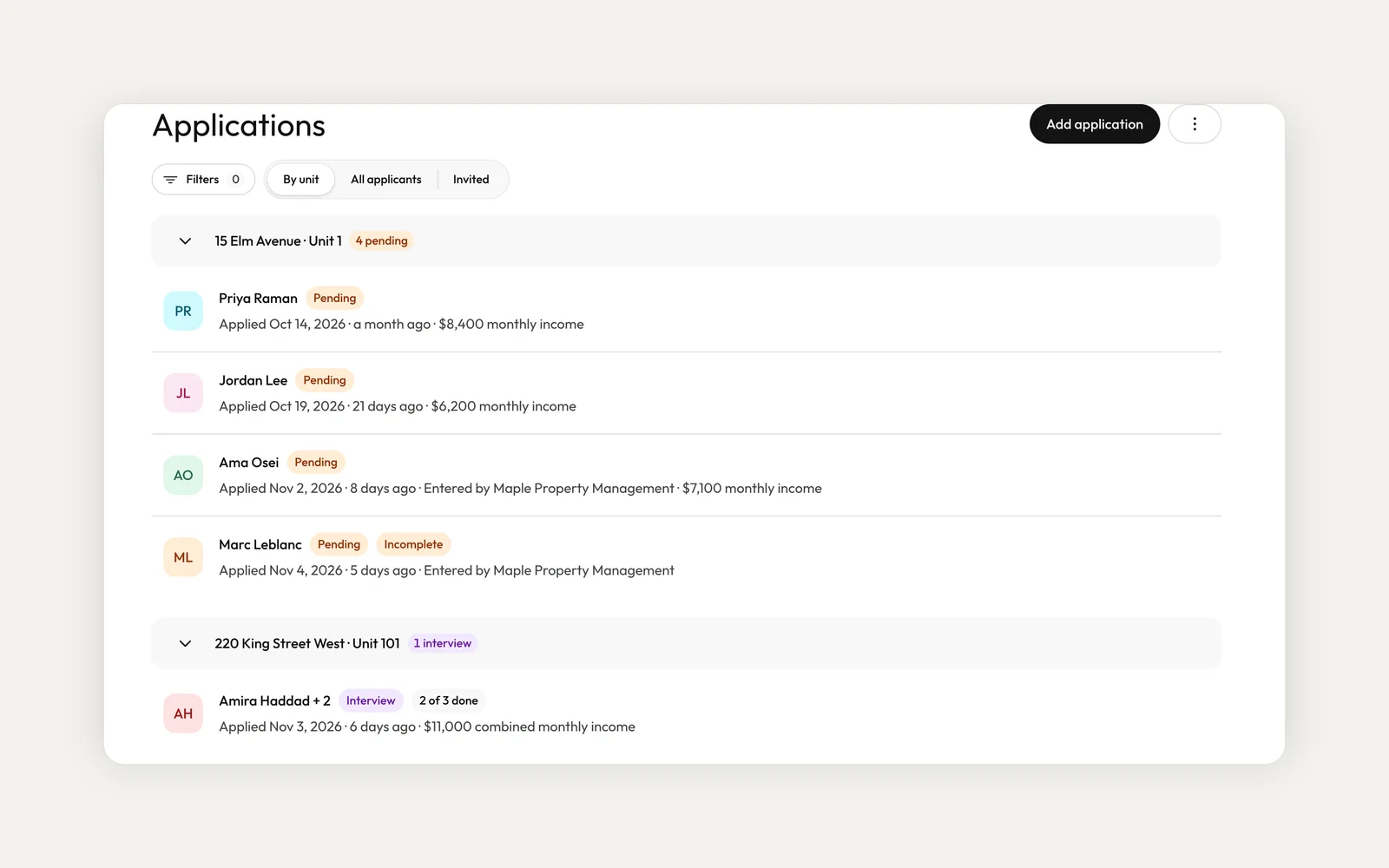
Applications now open By unit: each unit has a header with how many applications are at each stage, with its open applications underneath, oldest first. Switch to All applicants for one list. Every application has an Activity tab with its history, from the link you sent to each status change and who made it.
When you accept someone, Kera offers to reject the unit's other applicants, email them a short note, stop taking applications and cancel unused links, all in one step. Then add the applicant as a tenant, invite them to Kera and start the lease with their details filled in.
Who can build and change forms?
Landlords, organization admins and members whose role has Manage Application Forms. Choosing a form on a property or unit also needs Edit Properties. Sending or entering applications needs Process Applications.
Can I change a form after people have applied?
Yes. Your edits stay as unpublished changes until you click Publish changes. New applicants then get the new version, and applications already started or sent keep the questions they were asked.
Can I still use Kera's standard application?
Yes. Until you choose a default, every listing uses it. To change it, duplicate it and edit the copy.
To get started, open Settings, then Application forms, and click New form. Publish it, choose it as your default or on a property or unit, then share the application link or use Send application.
- Tenant screening is provided by The Great Renter and is available in Canada only. An applicant must give consent through Kera before a screening can be ordered. Reports contain third party information, including from Equifax Canada, as received. The decision about an applicant is yours, and neither Kera nor The Great Renter makes or recommends it. ↩
Run your whole business on Kera
Flat pricing, no per-door fees. Built for property managers.